Showing posts with label Windows. Show all posts

Wednesday, 9 September 2009

Free Video Player - Gom Player

Although there are thousands of video players out there, there are very few worth mentioning, the one I found a little while ago, Gom Player, definitely is.

Gom Player is a free multimedia player for Windows that will play virtually any file. It includes all the major codecs and will handilly direct you to a free version of any it happens to be missing (even though I have never experienced this). The great thing about Gom Player is that its free, lightweight and simple to use. Ok, sound a bit like VLC Player so what sets it apart?

There are a few features Gom has that are missing in VLC, the first major one is the ability to play playlists. You can queue up files to be played which saves you having to get up every time a short video ends. The other main distinguishing feature is its ability to play broken or incomplete files.

If you are half way through downloading a file and wanted to check its quality, or just have a damaged video file Gom's patented technology will quite happily play back any information it can find when other players will grumble and not even attempt to open the file.

Gom is definitely worth checking out and could well be a big competitor to VLC very soon, bring on a Mac version!

Gom Player


NB. upon writing this I have just noticed that Gom have released a free video encoder capable of many different formats. Although I havent tested this myself, if this is anywhere near as good as Gom Player it should be pretty special.

Windows Waking From Sleep Issues

As I use my Windows PC mostly as a media centre, it is constantly waking itself up and going back to sleep again. While this is often necessary for tasks such as recording television programs, sometimes the wake times just don't make sense.

To find out what is causing your computer to wake you can use this command from a command prompt: "powercfg -lastwake" without the quotes. This will give you a simple explanation of what caused the computer to wake. Most of the time this will be due to a scheduled recording but can be due to a guide update, virus scan etc.

Once you have determined a wake cause that you don't think is necessary eg. a virus scanner waking your computer up to scan while you are trying to get to sleep, you can either look into that specific application and try to disable the wake or look into the Windows Task scheduler, possibly disabling some tasks from waking the computer if it is asleep.


To do this right click on your "My Computer" icon and click "Manage", you will need administrator privileges to make changes in here. From the left hand side expand System Tools->Task Scheduler->Task Scheduler Library->Microsoft->Windows to get a list of applications with scheduled tasks. Click on an application or service eg. Media Center to get a list of tasks at the top. Have a look in the triggers column to see if any tasks have scheduled times to run.

Click on a task then click "Properties" from the right hand panel to view more information and edit it if necessarry. If the task does not have to run at a specific time eg. guide update or virus scan you can either change the time, decide whether the task can wake the computer or simply wait until it is next on.

Be very careful when making changes here as certain tasks need to run to keep your system stable. Only change things that you are sure about!

Friday, 30 January 2009

Windows Printer Hosting - Access Your Windows Printer From Your Mac

This is a link to a really good set of instruction on how to get your Mac printing to a printer connected to a Windows machine on your network. I took a while looking at this as you should be able to do this through the OSX "Print & Fax" system preference pane. As I discovered however it is a little more involved.

You actually have to go through the Unix Printing System via a web browser. This tutorial makes the process very clear and you will have cross-platform wireless printing in no time.

Connecting to Shared Windows Printer In Leopard

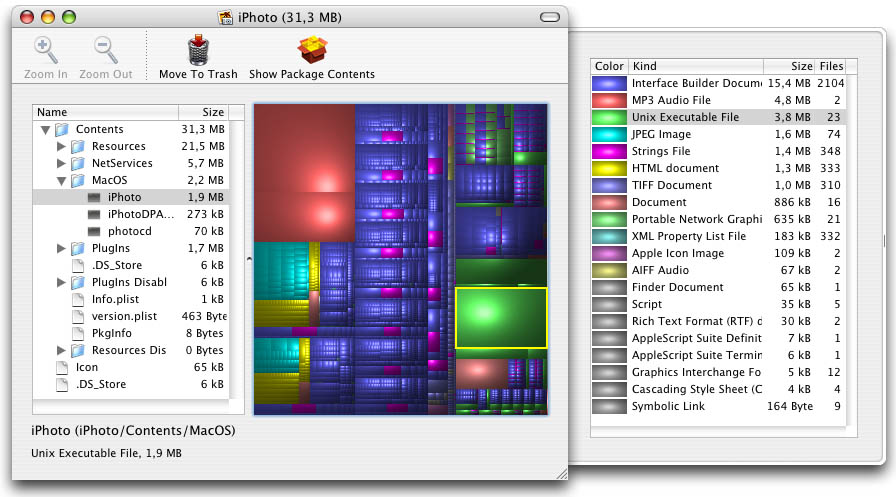
Disk Inventory X - Disk Usage Utility

This application allows you to view the size of files and folders on your hard drive in a graphical manner. Once scanned the contents of one or more of your disk drives (including removable drives) is shown in various sized blocks which are colour coded in relation to their file type.

This method of display can make it easy to track down large files or folders that you could delete to free up some much needed hard disk space. You can use the browser to delete files from within the application or open Finder windows to browse the directory.

This application is derived from a Linux utility called KDirStat. As such there are almost identical versions for Linux and Windows.

DiskInventoryX - Mac
WinDirstat - Windows
KDirStat - Linux

ImgBurn - Disk Burning Utility for Windows

If like me you have had problems with the built in CD/DVD burning support in Windows ImgBurn is a great alternative. It can support CD, DVD, HD-DVD and Blu-ray and almost every kind of burning or ripping required.

ImgBurn supports reading and writing of a number of image formats for backing up discs. You can also build disc images and then burn them from files on your computer. There is also support for creating Audio CDs for playing in a stereo. There is also a good verification utility to check that data is being correctly written to the disks.

In addition to the various reading and writing modes available there is support for adding meta data to the disc. This can things such as volume identifiers and CD cue points.

This is a leightweight application and definately worth checking out.

ImgBurn